Account Settings
The Account Settings page lets you manage your Chakra Console sign-in credentials.
Changing your password
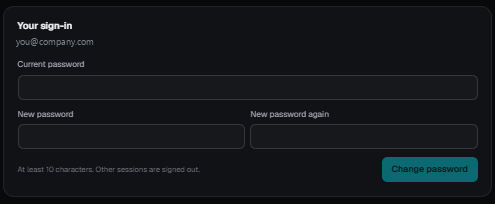
- Click Account under the SETTINGS group in the left navigation sidebar.
- Enter your current password to verify your identity.
- Enter and confirm your new password.
- Click Save.
Your new password takes effect immediately. You will remain signed in on your current device; other active sessions will require you to sign in again.
Choose a strong password
Use at least 12 characters with a mix of letters, numbers, and symbols. Avoid reusing passwords from other services.
Sign out
To sign out, click your account name in the top-right corner and select Sign out. Your session will be cleared and you will be returned to the login page.
Sessions expire automatically after 12 hours of inactivity.
Forgot your password?
Contact the Chakra Labs team to have your password reset. For security reasons, passwords cannot be recovered — only replaced.
Organisation access
Your Chakra Console sign-in gives you access to your organisation's projects only. You cannot see or modify other organisations' data. If you need additional users added to your organisation, contact the Chakra Labs team.